4.9

BlockBlock
BlockBlock provides continual protection by monitoring persistence locations.
SHARE
Screenshots (1)
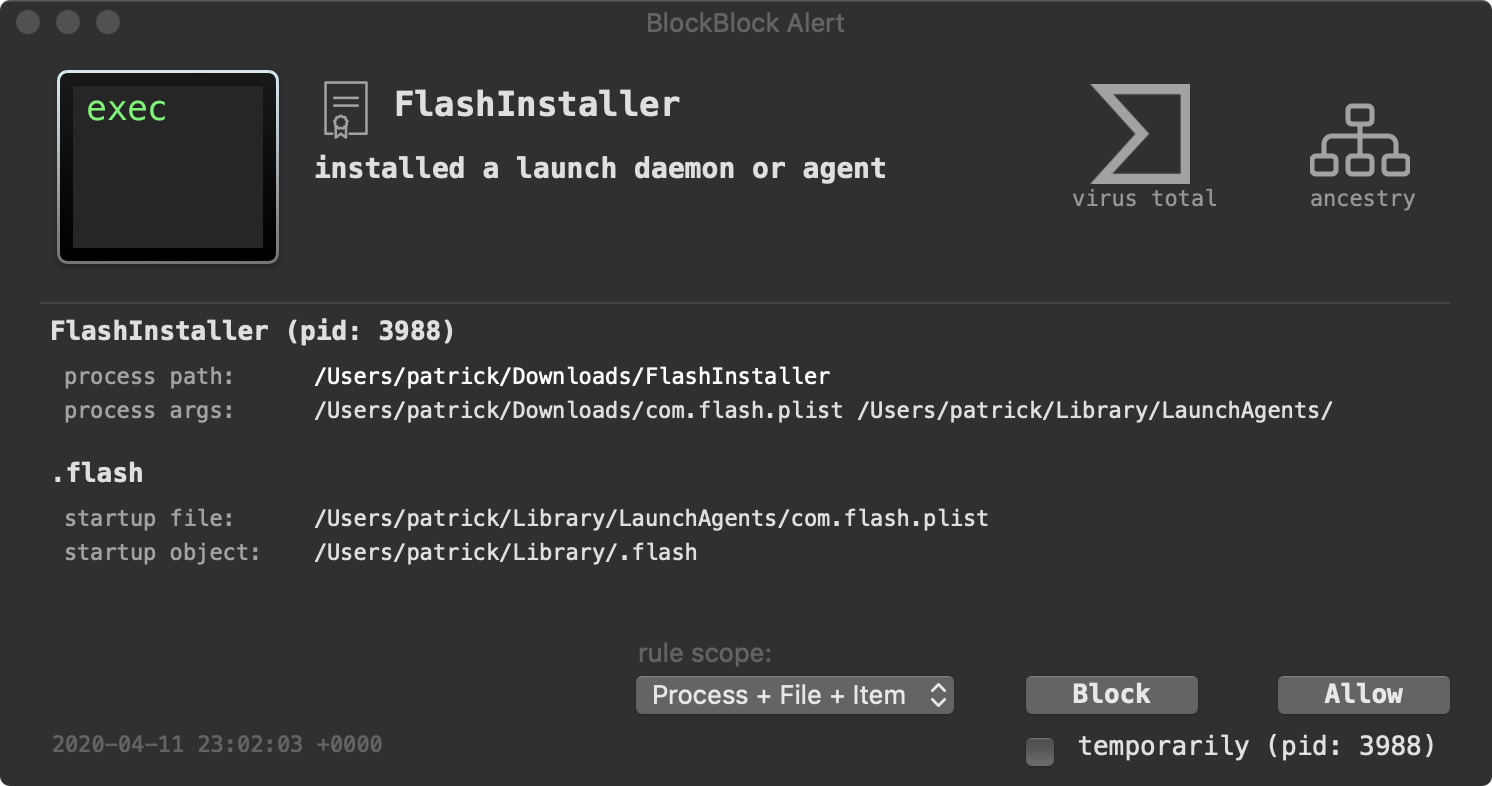
Screenshot 1 of 1
Overview
BlockBlock provides continuous real-time malware protection on macOS by guarding system persistence locations. Developed by Objective-See, BlockBlock monitors LaunchAgents, LaunchDaemons, Login Items, and startup files via Apple's Endpoint Security subsystem—popping immediate interactive Allow or Block prompts the instant unrecognized software tries to establish auto-start capabilities.
How It Works
BlockBlock operates through structured, deterministic execution stages:
Endpoint Security File Monitoring: Subscribes to macOS persistence paths cleanly in userspace without fragile legacy kernel extensions.
Installation-Time Interception: Detects attempts by binaries, scripts, or installers to write new LaunchAgents, Cron jobs, or Login Items immediately.
Interactive User Enforcement: Pauses suspect modifications and prompts an Allow or Block dialog showing process ancestry and target plist payloads.
Low-Overhead Persistent Daemon: Runs quietly in the background via a lightweight LaunchDaemon paired with a minimalist menu bar companion.
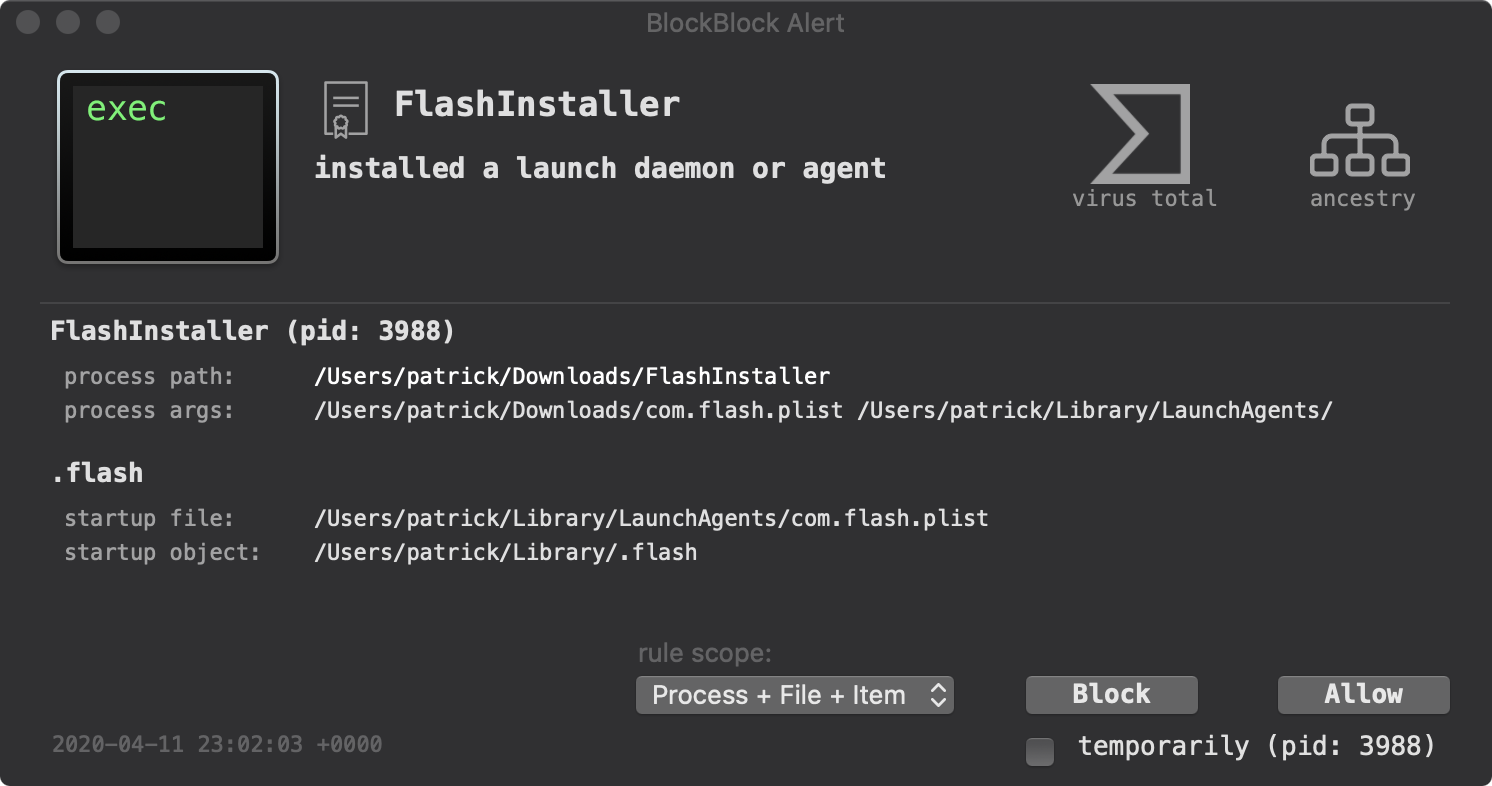
BlockBlock persistent startup monitoring prompt verifying binary changes
Key Technical Features & Capabilities
Real-Time Persistence Interception: Monitors creation and tampering across all OS persistence vectors in real time as software executes.
Kernel-Free Endpoint Security Daemon: Operates reliably over Apple's modern Endpoint Security Framework without risky legacy kernel extensions.
Process Lineage & Interactive Prompts: Displays exact responsible executable paths, arguments, and target persistence files before allowing changes.
Automated Safe Update Handling: Honors Apple-signed binaries and user-approved rules seamlessly without alert fatigue during legitimate app updates.
Architecture & Technology Stack
Primary Languages: Objective-C
System Frameworks: Apple Endpoint Security Framework (
libEndpointSecurity), Security.framework, XPCArchitecture: Signed System Daemon + Minimalist Menu Bar UI
Supported Platforms: macOS 11+ (Universal Apple Silicon & Intel)
System Requirements
| Specification | Minimum Requirement | Recommended Specification |
|---|---|---|
| Operating System | macOS 11.0+ (Universal Apple Silicon & Intel) | Latest stable release build |
| Processor Architecture | 4-Core x86_64 or Apple Silicon M1 | 8-Core Apple Silicon / Core i7+ |
| Memory (RAM) | 4 GB Unified Memory | 16 GB+ High-Speed RAM |
| Disk Space | 1 GB free SSD storage | 5 GB+ free SSD storage |
Installation & Setup Guide
macOS Installation
1
Download
BlockBlock_2.5.2.zip from CookApps.2
Run
BlockBlock Installer.app, authorize Full Disk Access for the daemon under System Settings › Privacy & Security, and start passive monitoring.Building from Source
bash
git clone https://github.com/objective-see/BlockBlock.git
cd BlockBlock
open BlockBlock.xcworkspace
How to Use & Workflow
1
Install Persistent Monitor: Run the bundled installer to deploy the Endpoint Security daemon.
2
Approve Legitimate Updates: When installing trusted utilities, click Allow (Temporarily or Permanently) when BlockBlock detects a new LaunchAgent.
3
Terminate Rogue Installers: Click Block immediately if an unrecognized script attempts stealth persistence.
Troubleshooting & Common Issues
Issue: BlockBlock fails to initialize after installation.
*Cause*: macOS blocks Endpoint Security clients unless granted Full Disk Access.
*Resolution*: Enable
BlockBlock inside System Settings › Privacy & Security › Full Disk Access and restart the installer.How to Use & Getting Started
## Installation & Setup Guide
### macOS Installation
1. Download `BlockBlock_2.5.2.zip` from CookApps.
2. Run `BlockBlock Installer.app`, authorize Full Disk Access for the daemon under **System Settings › Privacy & Security**, and start passive monitoring.
### Building from Source
```bash
git clone https://github.com/objective-see/BlockBlock.git
cd BlockBlock
open BlockBlock.xcworkspace
```
Ready to run BlockBlock?
100% Free & Open-Source native desktop software. Star the repository to support development.