
LangSwitcher
Open-source keyboard layout text converter for macOS.
LangSwitcher
Open-source keyboard layout text converter for macOS.
Typed text in the wrong keyboard layout? Select it, press a hotkey, and LangSwitcher instantly converts it to the correct layout. No more retyping ghbdtn when you meant привет.
An open-source alternative to Caramba Switcher and Punto Switcher.
If you find LangSwitcher useful, consider supporting the project — any contribution is appreciated!
**Documentation | Документация (RU)**
Demo
https://github.com/reg2005/langSwitcher/raw/main/screenshots/langSwitch.mp4
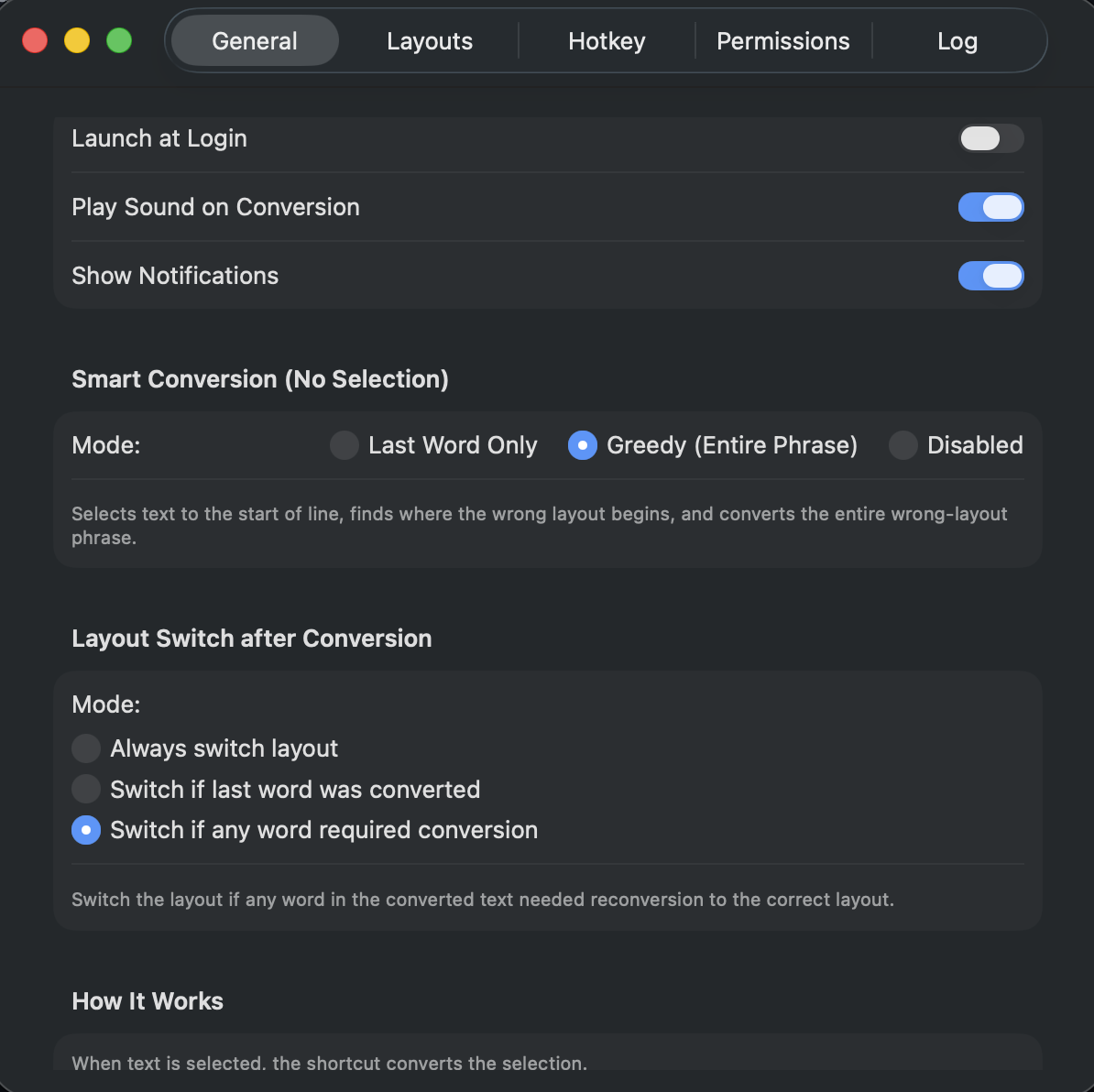
Screenshot
Key Features
⇧⇧ (Shift twice quickly) to convert, or set a custom shortcut?, !, / and other punctuation stay unchanged during conversionHow It Works
1. You type "ghbdtn" (meant to type "привет" but had English layout active)
2. Select the mistyped text (or just press the hotkey — Smart Conversion handles it)
3. Press ⇧⇧ (double Shift)
4. Text is replaced with "привет"
LangSwitcher maps characters based on physical key positions on the keyboard. The same physical key produces different characters depending on the active layout — LangSwitcher reverses this mapping.
Download
DMG (Recommended)
Go to Releases and download:
| Architecture | File |
|---|---|
| Apple Silicon (M1/M2/M3/M4) | LangSwitcher-*-arm64.dmg |
| Intel | LangSwitcher-*-x86_64.dmg |
| Universal (both) | LangSwitcher-*-universal.dmg |
Build from Source
#### Prerequisites
#### Steps
# Clone the repository
git clone https://github.com/reg2005/langSwitcher.git
cd langSwitcher

# Run tests
xcodebuild test \
  -project LangSwitcher.xcodeproj \
  -scheme LangSwitcher \
  -destination 'platform=macOS' \
  CODE_SIGN_IDENTITY="-" \
  CODE_SIGNING_REQUIRED=NO \
  CODE_SIGNING_ALLOWED=NO

# Build (universal binary)
xcodebuild -project LangSwitcher.xcodeproj \
  -scheme LangSwitcher \
  -configuration Release \
  -derivedDataPath build \
  -arch arm64 -arch x86_64 \
  ONLY_ACTIVE_ARCH=NO \
  CODE_SIGN_IDENTITY="-" \
  CODE_SIGNING_REQUIRED=NO \
  CODE_SIGNING_ALLOWED=NO \
  build

# The app is at build/Build/Products/Release/LangSwitcher.app
Or open LangSwitcher.xcodeproj in Xcode and press ⌘R.
Usage
Basic Workflow
⇧⇧ (double Shift) — Smart Conversion auto-selects and convertsSmart Conversion Modes
| Mode | Behavior |
|---|---|
| Greedy Line (default) | Selects to line start, finds where wrong layout begins, converts the entire wrong-layout phrase. Handles "ghbdtn rfr ltkf lheu" -> "привет как дела друг" |
| Last Word | Auto-selects only the last word before the cursor, converts if it looks like wrong layout |
| Disabled | Only works with explicit manual text selection |
Menu Bar
LangSwitcher lives in your menu bar with a keyboard icon. Click it to:
Settings
Access settings from the menu bar icon -> Settings (or ⌘,):
| Tab | Description |
|---|---|
| General | Launch at login, sounds, notifications, Smart Conversion mode, Layout Switch mode |
| Layouts | View and refresh detected keyboard layouts |
| Hotkey | Toggle double-shift or record a custom shortcut |
| Permissions | Check and grant Accessibility access |
| Log | View conversion history, label entries as correct/incorrect, export to JSON |
Conversion Log
Conversion logging is disabled by default for your privacy. You can enable it in Settings -> General -> Conversion Logging.
When enabled, conversions are saved to a local SQLite database (~/Library/Application Support/LangSwitcher/conversion_log.sqlite). You can configure the maximum number of stored entries (default: 100, or 0 for unlimited). In the Log tab you can:
No data ever leaves your Mac. The conversion log is stored purely locally and is never transmitted anywhere.
Supported Layouts
LangSwitcher detects layouts from your System Settings > Keyboard > Input Sources. Currently supported:
| Layout | Language Code | Physical Layout |
|---|---|---|
| U.S. (QWERTY) | en | QWERTY |
| ABC | en | QWERTY |
| Russian | ru | ЙЦУКЕН |
| German | de | QWERTZ |
| French | fr | AZERTY |
| Spanish | es | QWERTY (Spanish) |
Adding a new layout is straightforward — see Contributing.
Architecture
LangSwitcher/
├── Sources/
│   ├── App/
│   │   ├── LangSwitcherApp.swift       # SwiftUI App entry point
│   │   ├── AppDelegate.swift           # App lifecycle, hotkey, conversion orchestration
│   │   └── StatusBarController.swift   # Menu bar icon and menu
│   ├── Views/
│   │   ├── SettingsView.swift          # Settings window (5 tabs)
│   │   ├── ConversionLogView.swift     # Conversion log with data labeling
│   │   ├── HotkeyRecorderView.swift    # Custom hotkey recorder
│   │   ├── AboutView.swift             # About window
│   │   └── PermissionsView.swift       # Accessibility permissions
│   ├── Services/
│   │   ├── LayoutMapper.swift          # Character mapping engine
│   │   ├── KeyboardLayoutDetector.swift # System layout detection (Carbon TIS)
│   │   ├── TextConverter.swift         # Conversion orchestrator + greedy algorithm
│   │   ├── ConversionLogStore.swift    # SQLite-based conversion log storage
│   │   ├── HotkeyManager.swift         # Global hotkey (double-shift + custom)
│   │   ├── AccessibilityService.swift  # Clipboard-based text replacement
│   │   └── SettingsManager.swift       # UserDefaults persistence
│   ├── Localization/
│   │   ├── LocalizationManager.swift   # Runtime i18n engine
│   │   ├── Strings_en.swift            # English strings (~113 keys)
│   │   └── Strings_ru.swift            # Russian strings
│   └── Models/
│       ├── KeyboardLayout.swift        # Layout model & character maps
│       └── ConversionLog.swift         # Conversion log entry model
├── Resources/
│   └── Assets.xcassets                 # App icons and colors
├── LangSwitcherTests/
│   ├── LayoutMapperTests.swift         # 58 mapping tests
│   └── TextConverterTests.swift        # 35 converter tests
├── .github/workflows/
│   ├── build.yml                       # CI: test + build DMGs (Intel/ARM/Universal) + release
│   └── pages.yml                       # GitHub Pages deployment
├── screenshots/
│   ├── general.png                     # Settings General tab
│   └── langSwitch.mp4                  # Demo video
└── docs/                              # Docus v4 documentation site
    ├── nuxt.config.ts                  # Nuxt/Docus config with i18n
    ├── app.config.ts                   # App config (header, SEO, socials)
    ├── package.json                    # Docus dependencies
    └── content/
        ├── en/                         # English documentation
        └── ru/                         # Russian documentation
How Conversion Works
Input: "ghbdtn" (typed on US layout when Russian was intended)

1. Detect source layout -> "US" (characters match US keyboard map)
2. For each character, find physical key position:
   g -> key at position [0x05]
   h -> key at position [0x04]
   ...
3. Map physical key to target layout (Russian):
   [0x05] -> п
   [0x04] -> р
   ...
4. Apply punctuation preservation (non-letter -> non-letter stays as-is)
5. Result: "привет"
Key Design Decisions
⌘C -> transform -> ⌘V approach for maximum app compatibility. Works in virtually any text field.CGEventTap which requires special entitlements. Instead uses NSEvent.addGlobalMonitorForEvents for hotkey detection and CGEvent with .hidSystemState for keyboard simulation.Tech Stack
| Component | Technology |
|---|---|
| Language | Swift 5 |
| UI Framework | SwiftUI |
| Platform | macOS 13+ (Ventura) |
| Input Detection | Carbon (TISInputSource) |
| Text Manipulation | Accessibility API + Pasteboard |
| Hotkey | NSEvent global monitor + CGEvent |
| Settings | UserDefaults |
| Conversion Log | SQLite3 (C API, no dependencies) |
| Localization | Custom runtime i18n (English, Russian) |
| CI/CD | GitHub Actions |
| Distribution | DMG (Intel + ARM + Universal) via GitHub Releases |
| Website | GitHub Pages |
| Tests | XCTest (93 tests) |
Permissions
LangSwitcher requires Accessibility access to:
⌘C)⌘V)Grant access in System Settings -> Privacy & Security -> Accessibility.
The app does not:
Conversion logging is disabled by default. When you enable it, all data is stored locally in ~/Library/Application Support/LangSwitcher/. Nothing is ever uploaded or shared.
Contributing
Contributions are welcome! Here's how to add a new keyboard layout:
LangSwitcher/Sources/Models/KeyboardLayout.swiftLayoutCharacterMap with the character mappingallMaps array (order matters — specific patterns before generic ones)LangSwitcherTests/LayoutMapperTests.swift// Example: adding Italian layout
static let italian: [Character: Character] = {
let qwerty = Array("`1234567890-=qwertyuiop[]\\asdfghjkl;'zxcvbnm,./...")
let italian = Array("\\1234567890'ìqwertyuiopè+ùasdfghjklòàzxcvbnm,.-...")
var map: [Character: Character] = [:]
for i in 0.. Secrets and variables > Actions):
| Secret | Description |
|---|---|
| `MACOS_CERTIFICATE_P12` | Developer ID Application certificate exported as `.p12`, then base64-encoded: `base64 -i cert.p12 \| pbcopy` |
| `MACOS_CERTIFICATE_PASSWORD` | Password used when exporting the `.p12` file |
| `MACOS_KEYCHAIN_PASSWORD` | Any random string (used for the temporary CI keychain) |
| `MACOS_SIGNING_IDENTITY` | Full identity string, e.g. `Developer ID Application: Your Name (TEAMID)` |
**Optional secrets** (for notarization — recommended for public distribution):
| Secret | Description |
|---|---|
| `MACOS_NOTARIZATION_APPLE_ID` | Your Apple ID email |
| `MACOS_NOTARIZATION_PASSWORD` | App-specific password ([appleid.apple.com](https://appleid.apple.com) > Sign-In and Security > App-Specific Passwords) |
| `MACOS_NOTARIZATION_TEAM_ID` | Your 10-character Apple Developer Team ID |
**How to get the certificate:**
1. Open Keychain Access on your Mac
2. In the login keychain, find your "Developer ID Application" certificate
3. Right-click > Export Items > save as `.p12` with a password
4. Base64-encode it: `base64 -i DeveloperID.p12 | pbcopy`
5. Paste the result into the `MACOS_CERTIFICATE_P12` GitHub secret
**Behavior:**
- If `MACOS_CERTIFICATE_P12` is set: builds are signed with your Developer ID + hardened runtime
- If notarization secrets are also set: DMGs are submitted to Apple for notarization and stapled
- If no secrets are set: ad-hoc signing (forks and PRs work without any setup)
### Development
Clone
git clone https://github.com/reg2005/langSwitcher.git
cd langSwitcher
Run tests (required after every code change)
xcodebuild test \
-project LangSwitcher.xcodeproj \
-scheme LangSwitcher \
-destination 'platform=macOS' \
CODE_SIGN_IDENTITY="-" \
CODE_SIGNING_REQUIRED=NO \
CODE_SIGNING_ALLOWED=NO
Open in Xcode
open LangSwitcher.xcodeproj
How to Use & Getting Started
Ready to run LangSwitcher?
100% Free & Open-Source native desktop software. Star the repository to support development.
More in system-utilities
View all system-utilities apps →
Plonk
Ten menu bar utilities in one app: a window manager with snap zones you draw yourself, workspaces that reopen your apps on the right monitor, on-device ...

Kawa
Better input source switcher for macOS.

WhatCable
Tells you, in plain English, what each USB-C cable plugged into your Mac can do - speed, power, and e-marker info - from the menu bar.