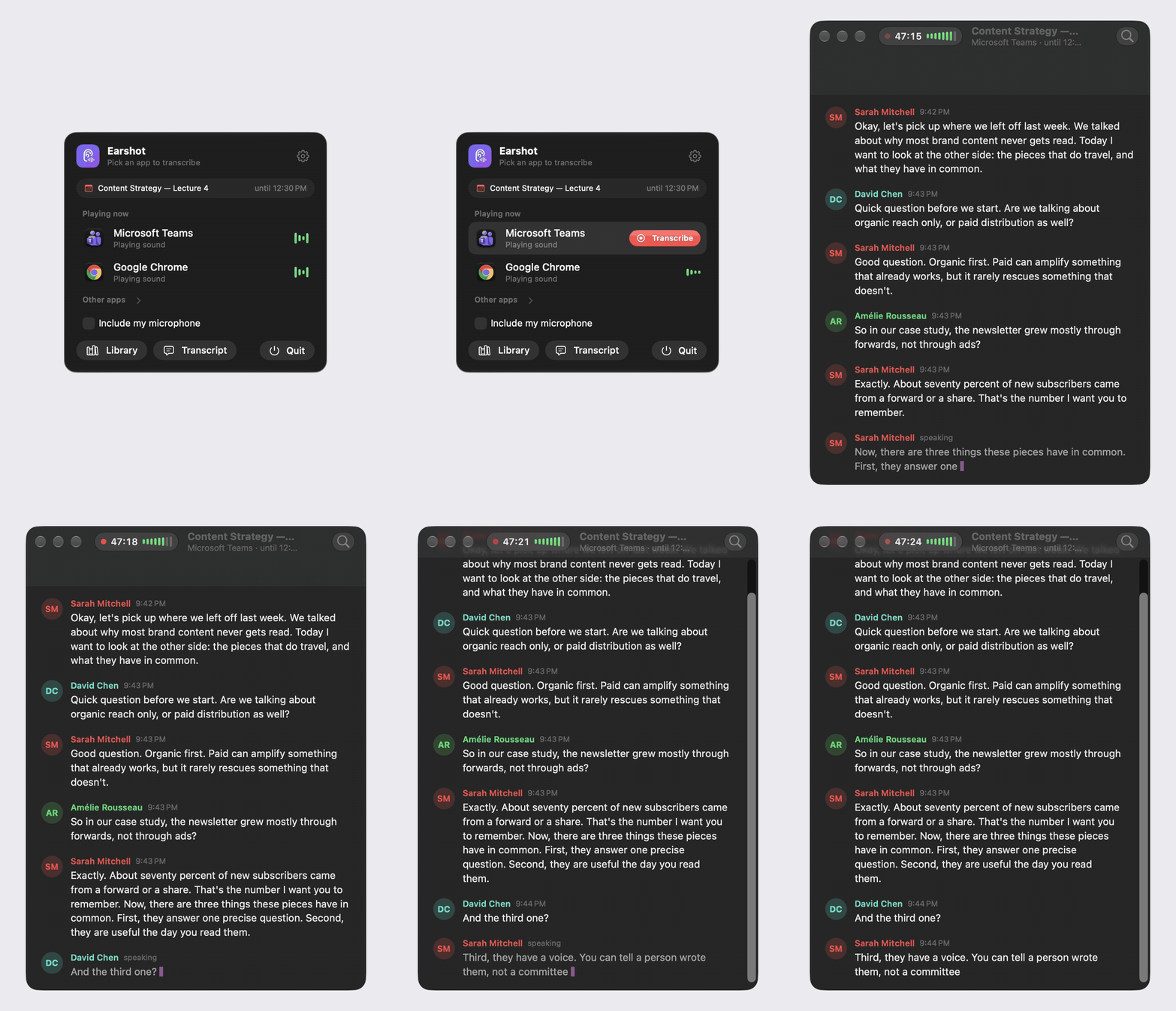
Download Earshot for Mac** · macOS 26 or later, Apple silicon Live, on-device transcription of any app on your Mac, with speaker names. Pick an app from the menu bar (Teams, Zoom, Chrome, Discord…) and everything it plays is transcribed as it is said. No cloud, no bot joining the call: audio never leaves the Mac.
Earshot is built on open-source principles to guarantee security, privacy, and full reproducibility. All sensitive data transformations run locally on your hardware with zero telemetry or unexpected cloud dependencies.
Key Technical Features & Capabilities
One click. The menu bar lists the apps playing sound right now. Click one to start.**: High-performance integrated capability designed for native Earshot workflow.
Only that app. Earshot taps the app's own audio output, so notifications, music or your own mic never end up in the transcript unless you ask. It works with the Mac muted.: Streamlined desktop functionality optimized for macOS and Windows.
Live text. Lines appear a moment after they are spoken, and the sentence in progress writes itself out. Scroll up and the view stays put until you jump back to live.: Streamlined desktop functionality optimized for macOS and Windows.
Your voice too, if you want. Tick "Include my microphone" and what you say is transcribed under your name. The mic is muted while the app is talking, so speaker echo is not transcribed twice.: Streamlined desktop functionality optimized for macOS and Windows.
Live subtitles, if you want. Turn them on in Settings and a small translucent window shows the last two lines said, with the speaker's name when Earshot knows it. Drag it anywhere, change the text size from the window itself. Two engines: Fast, Apple's on-device recognition (nothing to download, one language at a time), or High, Kyutai STT 1B on MLX (French and English mixed, about half a second behind, 2.4 GB downloaded only when you click Install).
Who said what. In Microsoft Teams, names come from Teams' own live captions, read through the accessibility API. Earshot can turn the captions on for you.: Streamlined desktop functionality optimized for macOS and Windows.
Filed by calendar event. Each session is saved under the name of the calendar event it belongs to, then the date. Recording stops when the call ends, but not during a break before the event is over.: Streamlined desktop functionality optimized for macOS and Windows.
English or French. The interface follows the system language, or pick one in Settings. Transcription works in either language, or detects it.: Streamlined desktop functionality optimized for macOS and Windows.
Supported Platforms: macOS 12.0+ (Apple Silicon M1-M4 & Intel x86_64), Windows 10/11 x64, Linux
System Requirements
Specification
Minimum Requirement
Recommended Specification
Operating System
macOS 12.0 Monterey / Windows 10 x64
macOS 14.0+ Sonoma / Windows 11 x64
Processor Architecture
Apple Silicon (M1+) or Intel Core i5 x64
Apple Silicon Unified Memory (M2/M3/M4)
Memory (RAM)
4 GB Unified RAM
8 GB+ High-Speed RAM
Storage Space
300 MB available local disk space
1 GB+ SSD storage
GPU Acceleration
Metal 2 / DirectX 12 compatible
Apple Neural Engine / Vulkan capable
Installation & Setup Guide
macOS Installation (Recommended)
1
Download the verified .dmg release installer directly from CookApps.
2
Open the disk image and drag Earshot.app into your /Applications folder.
3
Launch Earshot via Spotlight (Cmd + Space) or Launchpad.
Alternatively, install using Homebrew if available:
bash
brew install --cask earshot
Windows Installation
1
Download the official installer package (.exe / .msi).
2
Run the executable and follow the setup wizard.
3
Launch Earshot from the Start Menu or desktop shortcut.
Building from Source (Development Setup)
bash
git clone https://github.com/Bouliw/earshot.git
cd earshot
pnpm install || cargo build --release
pnpm run build
How to Use & Workflow
1
Application Launch & Workspace: Open Earshot to load the responsive native workspace.
2
Configuration & Preferences: Press Cmd + , (macOS) or Ctrl + , (Windows) to configure hardware acceleration, custom directories, and display themes.
3
Primary Operation: Drag-and-drop source files or input parameters directly into the central window.
4
Execution & Export: Initiate the processing pipeline and verify output files saved directly to your chosen local directory.
Troubleshooting & Common Issues
Problem: macOS Gatekeeper displays *"App is damaged and can't be opened"* or unnotarized developer notice.
Root Cause: macOS quarantine flag set on binaries downloaded outside the Mac App Store.
Resolution: Open Terminal and run:
bash
xattr -cr /Applications/Earshot.app
Alternatively, navigate to System Settings > Privacy & Security and select Open Anyway.
Problem: High memory consumption during batch processing operations.
Root Cause: Large media buffers retaining uncompressed state.
Resolution: Adjust batch concurrency in settings or process assets in focused batches.
How to Use & Getting Started
## Installation & Setup Guide
### macOS Installation (Recommended)
1. Download the verified `.dmg` release installer directly from CookApps.
2. Open the disk image and drag **Earshot.app** into your `/Applications` folder.
3. Launch Earshot via Spotlight (`Cmd + Space`) or Launchpad.
Alternatively, install using Homebrew if available:
```bash
brew install --cask earshot
```
### Windows Installation
1. Download the official installer package (`.exe` / `.msi`).
2. Run the executable and follow the setup wizard.
3. Launch **Earshot** from the Start Menu or desktop shortcut.
### Building from Source (Development Setup)
```bash
git clone https://github.com/Bouliw/earshot.git
cd earshot
pnpm install || cargo build --release
pnpm run build
```
Ready to run Earshot?
100% Free & Open-Source native desktop software. Star the repository to support development.