Open-source meeting notes for Mac and Windows that also record your screen, so you can click a note and replay that moment. AutoDoc is an open-source, local-first meeting notes app for macOS and Windows. Record your screen and meeting audio, get editable notes, and click a note's timestamp to replay the moment. Transcription, notes, and Ask AI run on your computer. No AutoDoc account or AI API key required.      
AutoDoc is built on open-source principles to guarantee security, privacy, and full reproducibility. All sensitive data transformations run locally on your hardware with zero telemetry or unexpected cloud dependencies.
Key Technical Features & Capabilities
On-device transcription. Models are chosen for your meeting language and hardware, with no network round-trips for your audio.: Streamlined desktop functionality optimized for macOS and Windows.
**Local notes, no accounts. Notes run through a local Ollama instance AutoDoc manages. No AutoDoc account, no API keys, no inference bills.
Multi-track capture. Screen, microphone, and system audio are recorded as separate streams. Your microphone is labeled Me and combined system audio is labeled Them; AutoDoc does not identify individual remote participants.: Streamlined desktop functionality optimized for macOS and Windows.
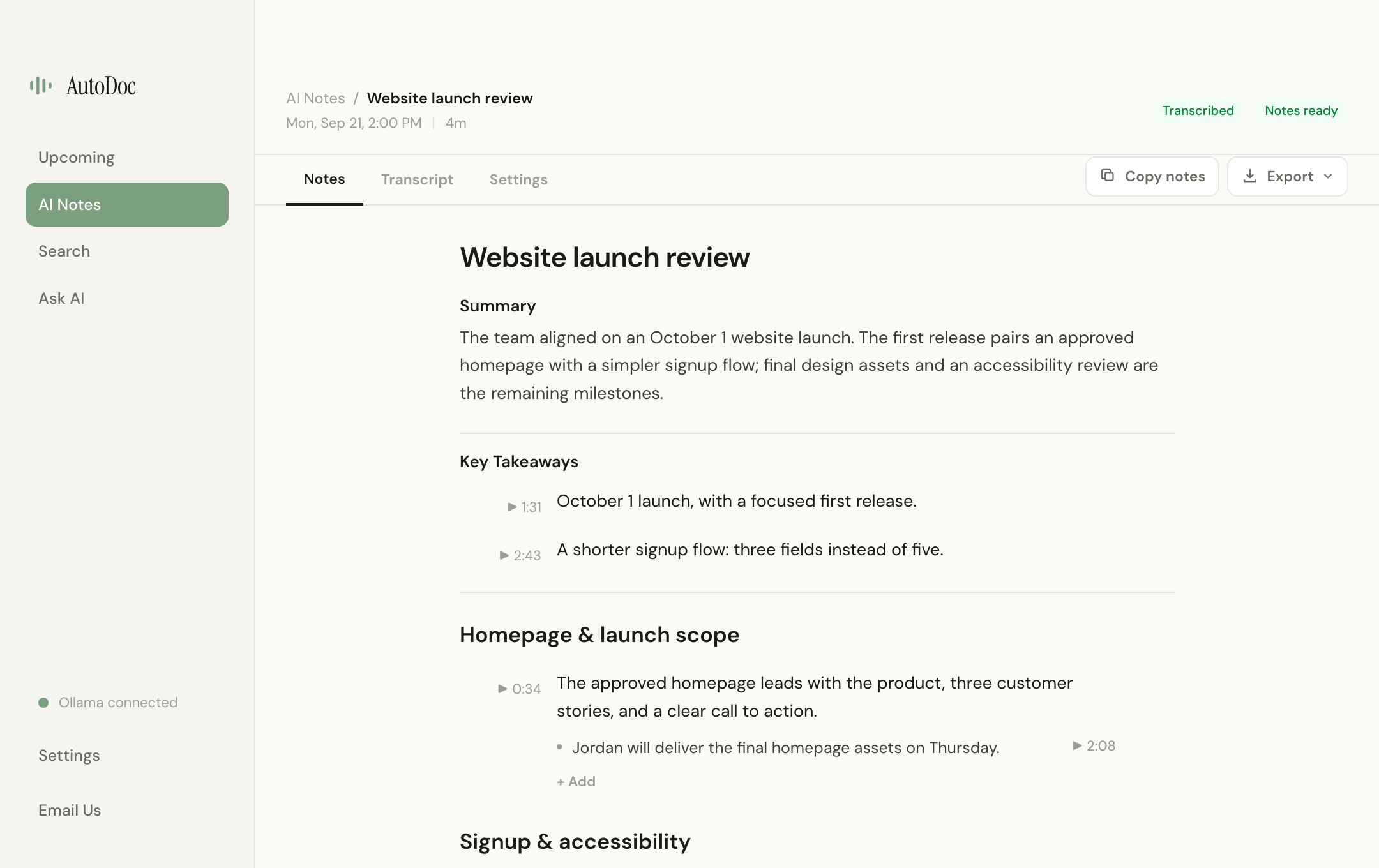
Replay key moments. Watch the recording in the Transcript tab, or click a note's timestamp to jump to that moment in the video.: Streamlined desktop functionality optimized for macOS and Windows.
Editable notes. Get a summary and conversation topics with supporting details, edit them, copy as plain text, or export to PDF, Word, or Markdown. Review generated notes before relying on them.: Streamlined desktop functionality optimized for macOS and Windows.
Ask AI across meetings. Get grounded answers drawn from your meetings, entirely on-device.: Streamlined desktop functionality optimized for macOS and Windows.
Calendars and detection. Connect Google and Microsoft calendars with Off / Once / Series auto-record per event. AutoDoc lives in your macOS menu bar or Windows tray and offers to record when a Zoom, Meet, Teams, Webex, or Slack meeting starts.: Streamlined desktop functionality optimized for macOS and Windows.
Full-text search. Search every transcript and note, with deep links straight to the moment.: Streamlined desktop functionality optimized for macOS and Windows.
Architecture & Technology Stack
Primary Languages: Swift, TypeScript, Python / C++
Supported Platforms: macOS 12.0+ (Apple Silicon M1-M4 & Intel x86_64), Windows 10/11 x64, Linux
System Requirements
Specification
Minimum Requirement
Recommended Specification
Operating System
macOS 12.0 Monterey / Windows 10 x64
macOS 14.0+ Sonoma / Windows 11 x64
Processor Architecture
Apple Silicon (M1+) or Intel Core i5 x64
Apple Silicon Unified Memory (M2/M3/M4)
Memory (RAM)
4 GB Unified RAM
8 GB+ High-Speed RAM
Storage Space
300 MB available local disk space
1 GB+ SSD storage
GPU Acceleration
Metal 2 / DirectX 12 compatible
Apple Neural Engine / Vulkan capable
Installation & Setup Guide
macOS Installation (Recommended)
1
Download the verified .dmg release installer directly from CookApps.
2
Open the disk image and drag AutoDoc.app into your /Applications folder.
3
Launch AutoDoc via Spotlight (Cmd + Space) or Launchpad.
Alternatively, install using Homebrew if available:
bash
brew install --cask autodoc
Windows Installation
1
Download the official installer package (.exe / .msi).
2
Run the executable and follow the setup wizard.
3
Launch AutoDoc from the Start Menu or desktop shortcut.
Building from Source (Development Setup)
bash
git clone https://github.com/DuetDisplay/AutoDoc.git
cd AutoDoc
pnpm install || npm install
pnpm run build || npm run build
How to Use & Workflow
1
Application Launch & Workspace: Open AutoDoc to load the responsive native workspace.
2
Configuration & Preferences: Press Cmd + , (macOS) or Ctrl + , (Windows) to configure hardware acceleration, custom directories, and display themes.
3
Primary Operation: Drag-and-drop source files or input parameters directly into the central window.
4
Execution & Export: Initiate the processing pipeline and verify output files saved directly to your chosen local directory.
Troubleshooting & Common Issues
Problem: macOS Gatekeeper displays *"App is damaged and can't be opened"* or unnotarized developer notice.
Root Cause: macOS quarantine flag set on binaries downloaded outside the Mac App Store.
Resolution: Open Terminal and run:
bash
xattr -cr /Applications/AutoDoc.app
Alternatively, navigate to System Settings > Privacy & Security and select Open Anyway.
Problem: High memory consumption during batch processing operations.
Root Cause: Large media buffers retaining uncompressed state.
Resolution: Adjust batch concurrency in settings or process assets in focused batches.
How to Use & Getting Started
## Installation & Setup Guide
### macOS Installation (Recommended)
1. Download the verified `.dmg` release installer directly from CookApps.
2. Open the disk image and drag **AutoDoc.app** into your `/Applications` folder.
3. Launch AutoDoc via Spotlight (`Cmd + Space`) or Launchpad.
Alternatively, install using Homebrew if available:
```bash
brew install --cask autodoc
```
### Windows Installation
1. Download the official installer package (`.exe` / `.msi`).
2. Run the executable and follow the setup wizard.
3. Launch **AutoDoc** from the Start Menu or desktop shortcut.
### Building from Source (Development Setup)
```bash
git clone https://github.com/DuetDisplay/AutoDoc.git
cd AutoDoc
pnpm install || npm install
pnpm run build || npm run build
```
Ready to run AutoDoc?
100% Free & Open-Source native desktop software. Star the repository to support development.